
Submitting a Digitization Request (New UI)
1. Add Items to Your Reading List:
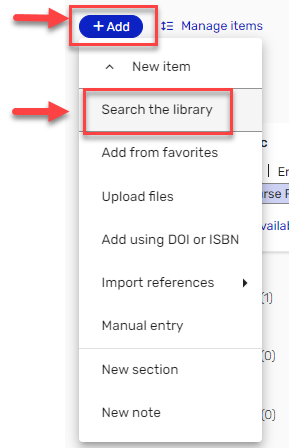
- From the top-left corner of your list, Click +Add > New item.
- Then select Search the Library.
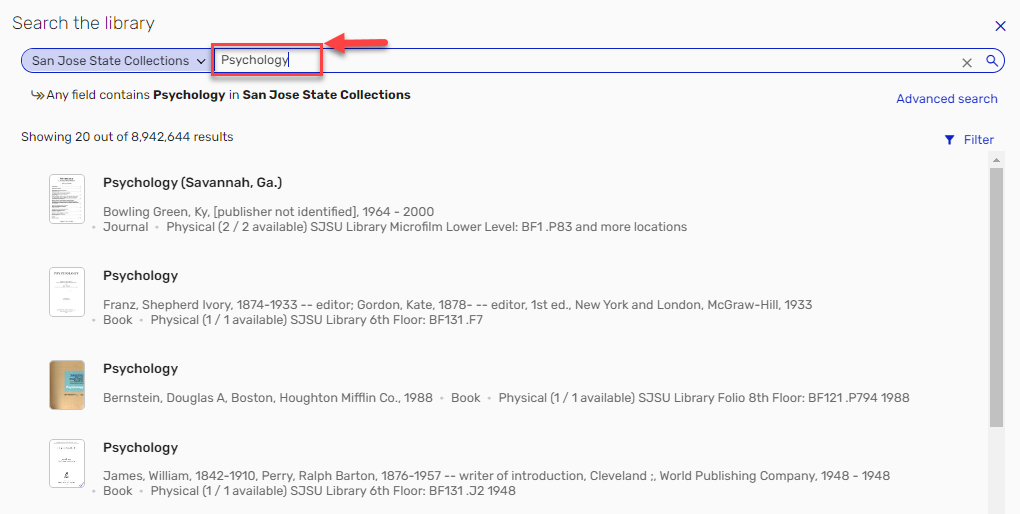
- Search the library’s catalog using the San Jose State Collections scope for items you wish to digitize.
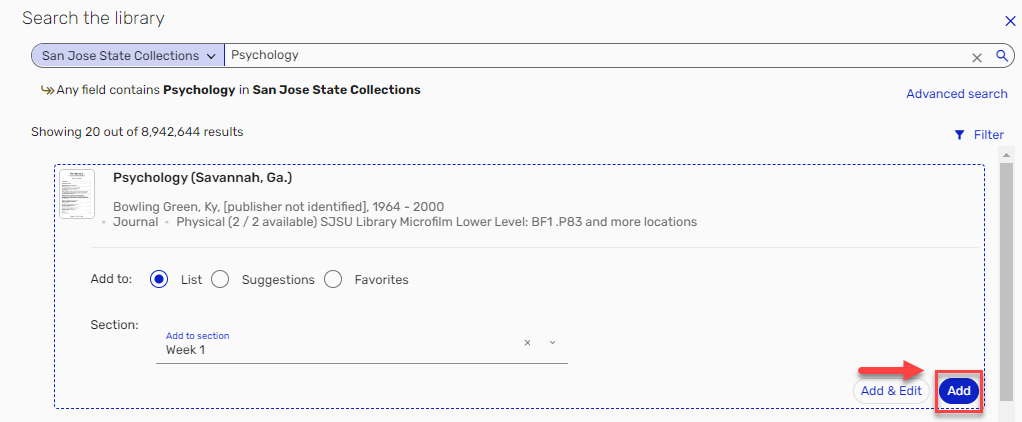
- Click Add to place the item in your reading list.
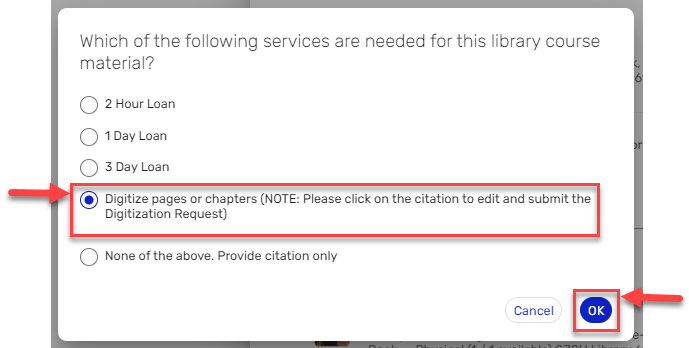
- A pop-up will ask for a loan period. Select Digitize pages or chapters, then click OK.
2. Request Digitization:
- Click the item's Title in your list to open item details.
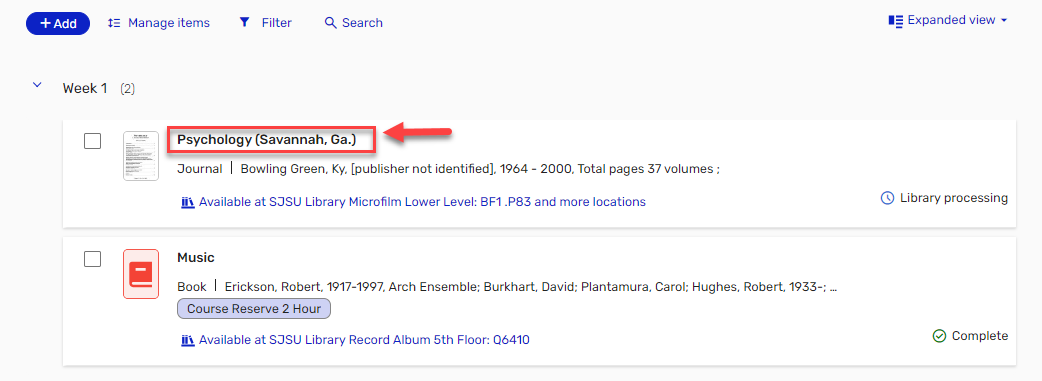
- On the next window, scroll to the bottom and select Request Digitization.
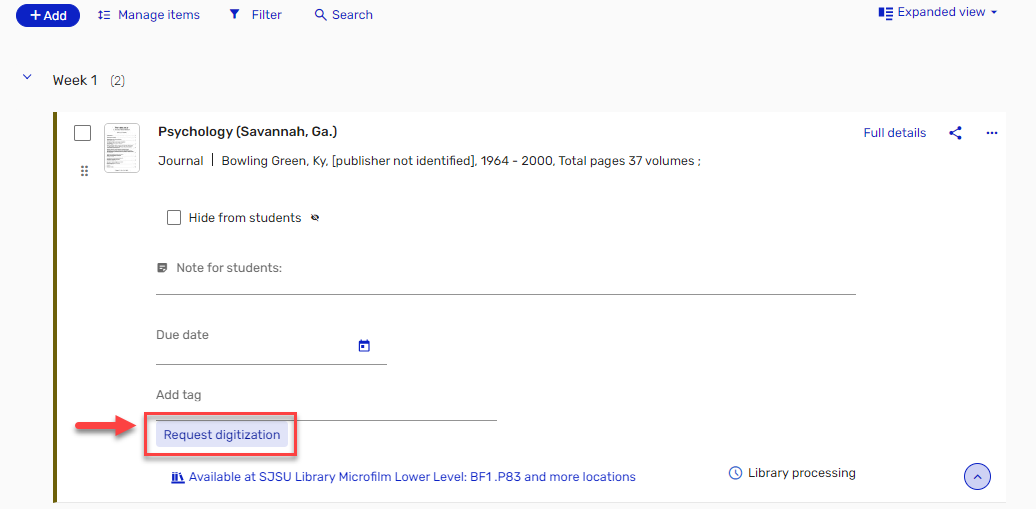
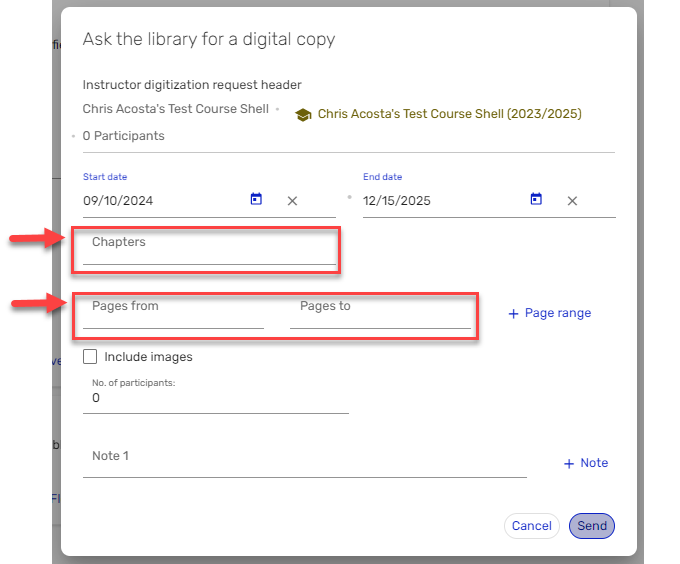
- A form will appear to enter page ranges, chapter titles, and optional notes for library staff.
3. Submit the Request:
- After entering all details, specify the expected time frame for access.
- Click Send to submit the request to the library.

4. Restrictions and Processing Time:
- Due to copyright, no more than 10% of a book or 50 pages can be digitized.
- Please allow at least 5 business days for processing.