
Creating Great Presentations
Many business classes will require that you create individual or group presentations to demonstrate your work. Here are some resources to help you make your presentations amazing!
Forbes: "9 Easy Ways to Create PowerPoint Slides That Suck Less"
This short article from Forbes will show you how to create engaging presentations.
-
9 Easy Ways To Create PowerPoint Slides That Suck Less
 "Presentation slides serve two primary purposes. One is to support a live presentation in which each slide is annotated verbally. The other is for the content to standalone, allowing a reader to effectively review the slides without the benefit of a speaker's insights. The relevancy of the following suggestions is dependent on the slide creator's underlying intentions."
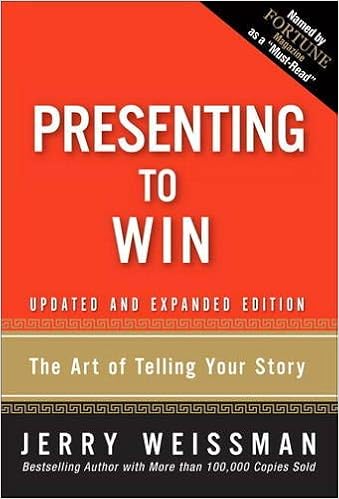
Ebooks on Presentations
-
-
-
 Let the Story Do the Work
by
ISBN: 9780814438022Publication Date: 2017-07-30People forget facts, but they never forget a good story. Unfortunately it's never that simple, though. Because for most, there's nothing easy about crafting a memorable story, let alone linking it to professional goals. But material for stories and anecdotes that can be used for your professional success surround you! Let the Story Do the Work shows you how to mine your experience for simple narratives that will achieve your goals. You can learn to:* Capture attention* Engage your audience* Change minds* Inspire action* Pitch persuasively* And more! When you find the perfect hook, structure your story according to its strengths, and deliver it at the right time in the right way, you'll see firsthand how easy it is to turn everyday communications into opportunities to connect, gain buy-in, and build lasting relationships.
Let the Story Do the Work
by
ISBN: 9780814438022Publication Date: 2017-07-30People forget facts, but they never forget a good story. Unfortunately it's never that simple, though. Because for most, there's nothing easy about crafting a memorable story, let alone linking it to professional goals. But material for stories and anecdotes that can be used for your professional success surround you! Let the Story Do the Work shows you how to mine your experience for simple narratives that will achieve your goals. You can learn to:* Capture attention* Engage your audience* Change minds* Inspire action* Pitch persuasively* And more! When you find the perfect hook, structure your story according to its strengths, and deliver it at the right time in the right way, you'll see firsthand how easy it is to turn everyday communications into opportunities to connect, gain buy-in, and build lasting relationships. -
 Slide:ology
by
ISBN: 9780596522346Publication Date: 2008-08-26No matter where you are on the organizational ladder, the odds are high that you've delivered a high-stakes presentation to your peers, your boss, your customers, or the general public. Presentation software is one of the few tools that requires professionals to think visually on an almost daily basis. But unlike verbal skills, effective visual expression is not easy, natural, or actively taught in schools or business training programs. slide:ology fills that void. Written by Nancy Duarte, President and CEO of Duarte Design, the firm that created the presentation for Al Gore's Oscar-winning film, An Inconvenient Truth, this book is full of practical approaches to visual story development that can be applied by anyone. The book combines conceptual thinking and inspirational design, with insightful case studies from the world's leading brands. With slide:ology you'll learn to: Connect with specific audiences Turn ideas into informative graphics Use sketching and diagramming techniques effectively Create graphics that enable audiences to process information easily Develop truly influential presentations Utilize presentation technology to your advantage Millions of presentations and billions of slides have been produced -- and most of them miss the mark. slide:ology will challenge your traditional approach to creating slides by teaching you how to be a visual thinker. And it will help your career by creating momentum for your cause.
Slide:ology
by
ISBN: 9780596522346Publication Date: 2008-08-26No matter where you are on the organizational ladder, the odds are high that you've delivered a high-stakes presentation to your peers, your boss, your customers, or the general public. Presentation software is one of the few tools that requires professionals to think visually on an almost daily basis. But unlike verbal skills, effective visual expression is not easy, natural, or actively taught in schools or business training programs. slide:ology fills that void. Written by Nancy Duarte, President and CEO of Duarte Design, the firm that created the presentation for Al Gore's Oscar-winning film, An Inconvenient Truth, this book is full of practical approaches to visual story development that can be applied by anyone. The book combines conceptual thinking and inspirational design, with insightful case studies from the world's leading brands. With slide:ology you'll learn to: Connect with specific audiences Turn ideas into informative graphics Use sketching and diagramming techniques effectively Create graphics that enable audiences to process information easily Develop truly influential presentations Utilize presentation technology to your advantage Millions of presentations and billions of slides have been produced -- and most of them miss the mark. slide:ology will challenge your traditional approach to creating slides by teaching you how to be a visual thinker. And it will help your career by creating momentum for your cause. -
 Better Presentations
by
ISBN: 9780231542791Publication Date: 2016-12-19Designed for presenters of scholarly or data-intensive content, Better Presentations details essential strategies for developing clear, sophisticated, and visually captivating presentations. With a range of clear examples for what to do (and what not to do), Jonathan Schwabish shares the best techniques to display work and win over audiences.
Better Presentations
by
ISBN: 9780231542791Publication Date: 2016-12-19Designed for presenters of scholarly or data-intensive content, Better Presentations details essential strategies for developing clear, sophisticated, and visually captivating presentations. With a range of clear examples for what to do (and what not to do), Jonathan Schwabish shares the best techniques to display work and win over audiences.


Presentation Room at King
The King Library's new Presentation Practice Room, in the Lower Level, offers a space for practicing, reviewing and recording presentations and pitches. Students can either plug in their own phone or tablet or they can use the camera and mic provided in the room. Students can display slides or play videos behind them on a the large Samsung 4K HD Smart TV or use a green screen that allows custom backdrops. The room includes a Samsung 4K Confidence monitor to preview the video, three-point lighting for the best visual results and an iMac with Camtasia to capture and edit the recording.

Quick Guide for Slide Presentations
Fonts
- Use font size no smaller than 24 point.
- Clearly label each screen. Use a larger font (35-45 points) or different color for the title.
- Avoid italicized fonts as they are difficult to read quickly.
- No more than 6-8 words per line
- For bullet points, use the “6 x 6 Rule.” One thought per line, with no more than 6 words per line and no more than 6 lines per slide
- Use dark text on light background or light text on dark background. However, dark backgrounds sometimes make it difficult for some people to read the text.
- Do not use all caps (except for titles).
- To test the font, stand back six feet from the monitor and see if you can read the slide.
Graphics and Design
- Keep the background consistent and subtle.
- Use only enough text when using charts or graphs to explain the concept.
- Clearly label the graphic.
- Keep the design clean and uncluttered. Leave empty space around the text and graphics.
- Use quality clipart and use it sparingly. The graphic should relate to and enhance the topic of the slide.
- Try to use the same style graphics throughout the presentation (e.g., cartoons, photographs)
- Limit the number of graphics on each slide.
- Avoid flashy graphics and noisy animation effects unless they relate directly to the slide.
Color
- Limit the number of colors on a single screen.
- Use no more than four colors on one chart.
General Presentation
- Check the spelling and grammar.
- Do not read the presentation. Practice the presentation so you can speak from bullet points. The text should be a cue for the presenter rather than a message for the viewer.
- It is often more effective to have bulleted points appear one at a time so the audience listens to the presenter rather than reading the screen.
- Do not turn your back on the audience. Try to position the monitor so you can speak from it.
Give credit at the end of the slide, like this:
Adapted from:
Bankerd, Kathy. “How to Optimize Projection Technology: Using Fonts, Graphics, and Color to Maximize the Effectiveness of Your Presentation.” Syllabus. November/December 1997.
Bird, Linda. “Avoid the Mistakes of PowerPoint Rookies.” Smart Computing. January 2001.
Brown, David G. “PowerPoint-Induced Sleep.” Syllabus. January 2001.