What are Course Reserves?
Course Reserves are resources set aside for specific courses, available in both digital and print formats. Digital resources are accessible through LCM reading lists integrated within Canvas, while print materials are housed behind the service desk on the 1st floor. Loan periods for print items, determined by the instructor, can be designated as 2 hours, 1 day, or 3 days.
Students may also lookup reserve material by other professors from the Course Reserves Library Page.
Instructions:
1. Adding Resources owned by the Library
2. Adding your Personal Resources within your list- Print or Electronic
Adding Resources owned by the Library (New UI)
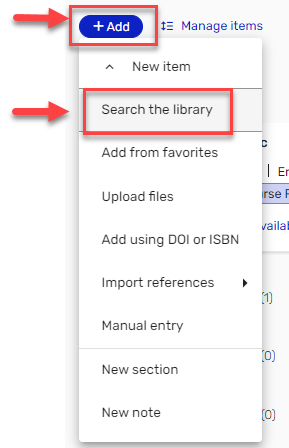
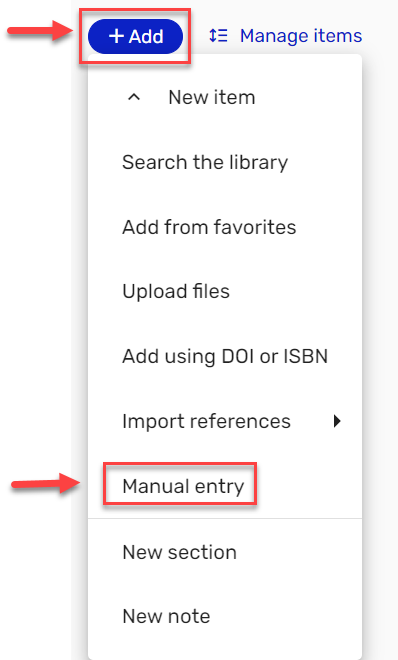
- To add library owned items to your reading list, on the top-left corner of your list, click +Add > New item.
- Then select Search the Library.
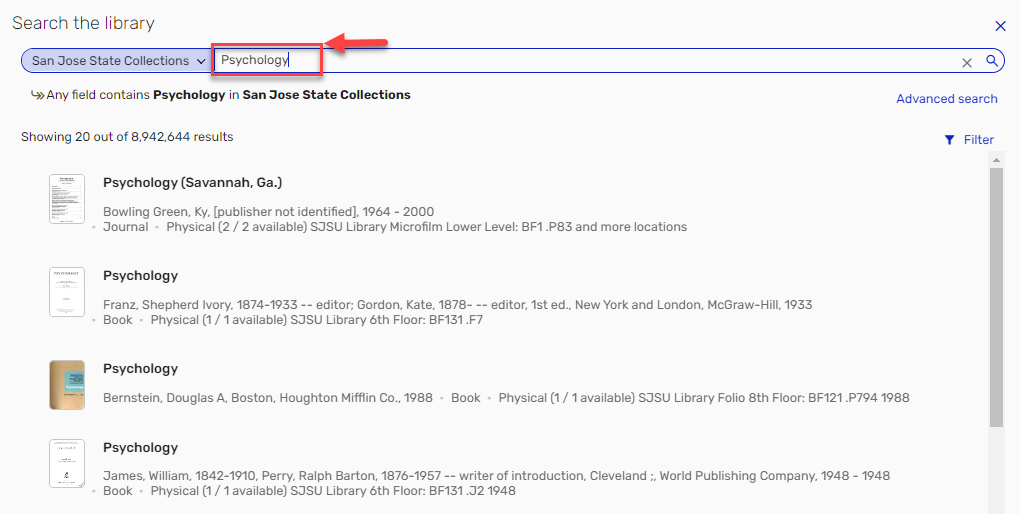
- In the search bar, enter the title, author, ISBN, or other relevant information. Here, you can search the library's OneSearch catalog for books, articles, or other resources.
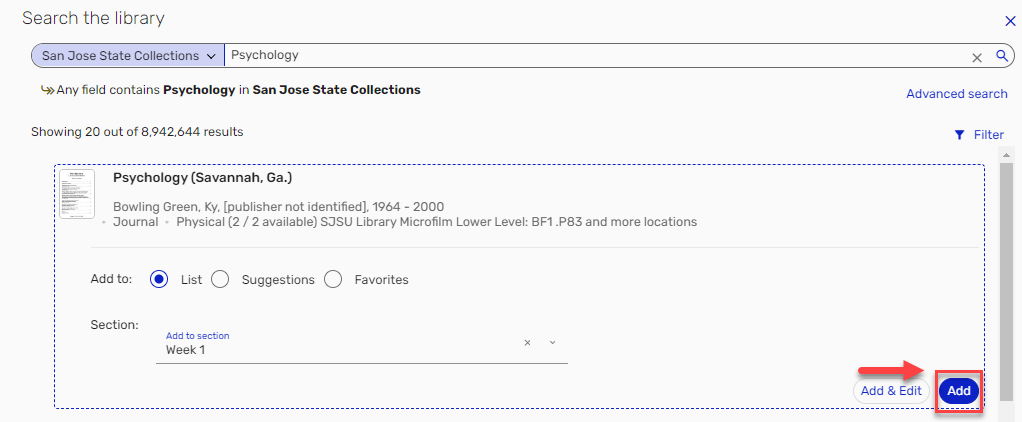
- Once you find the resource, Click Add to place it in your reading list.
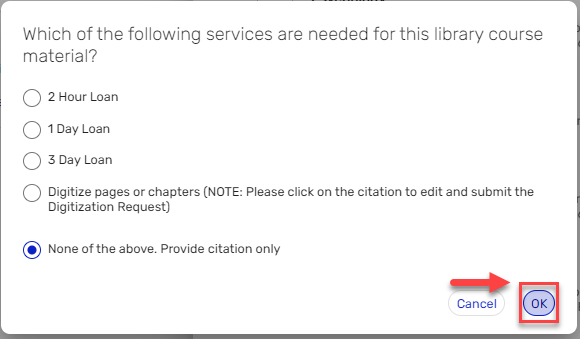
- You’ll be greeted with a pop up window asking to indicate a loan period for the resource. Options are 2 hr, 1 Day, 3 Day, Digitize pages or chapters, and None of the above. Provide citation only. Select the desired option.
- Click Ok when done.
Adding your Personal Resources within your list — Print or Electronic (New UI)
Within the LCM tool, you can input bibliographic information for books, articles, or other resources not found in the library catalog. This is useful for adding personal resources, or non-library materials to your list.
To do this follow the steps below:
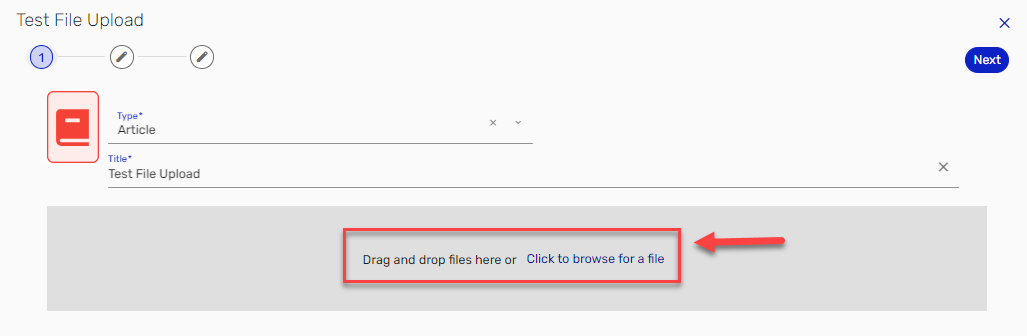
- Select +Add > Manual Entry from the top of the reading list to manually create a citation.
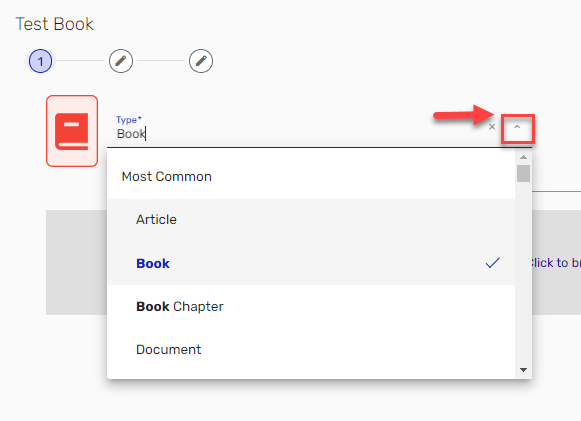
- Next, select the material Type from the dropdown of options.
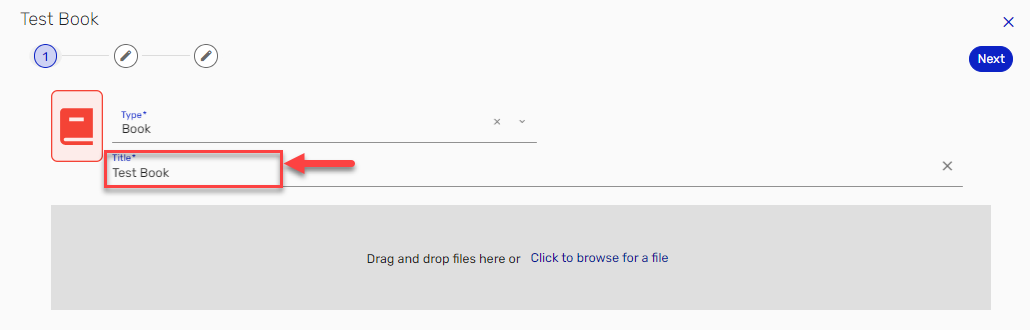
- You can then input the Title of your resource.
- If adding a file, drag and drop it into the sidebar or use the upload function to select the file from your computer.
Note: If you need copyright clearance for your file, please review the tab titled " Copyright Clearance (New UI)."
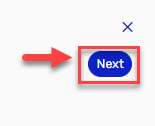
- When finished, select Next, at the top right of the screen.
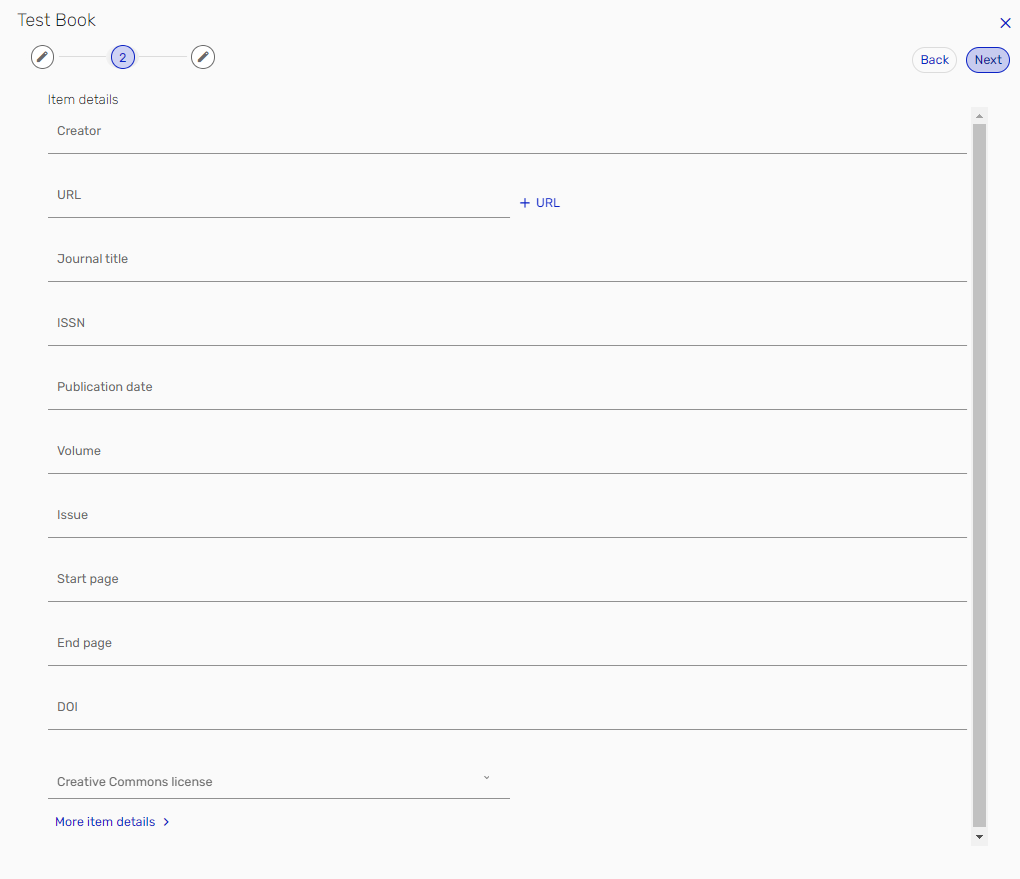
- On the next screen, input any other item details that you would like (i.e. Creator (author), ISBN, etc).
- When finished,select Next, at the top right of the screen.
- Here, decide which section of your list you wish to place the item, using the dropdown. And lastly(for books only), select the check box to indicate you will provide a personal copy to the library.
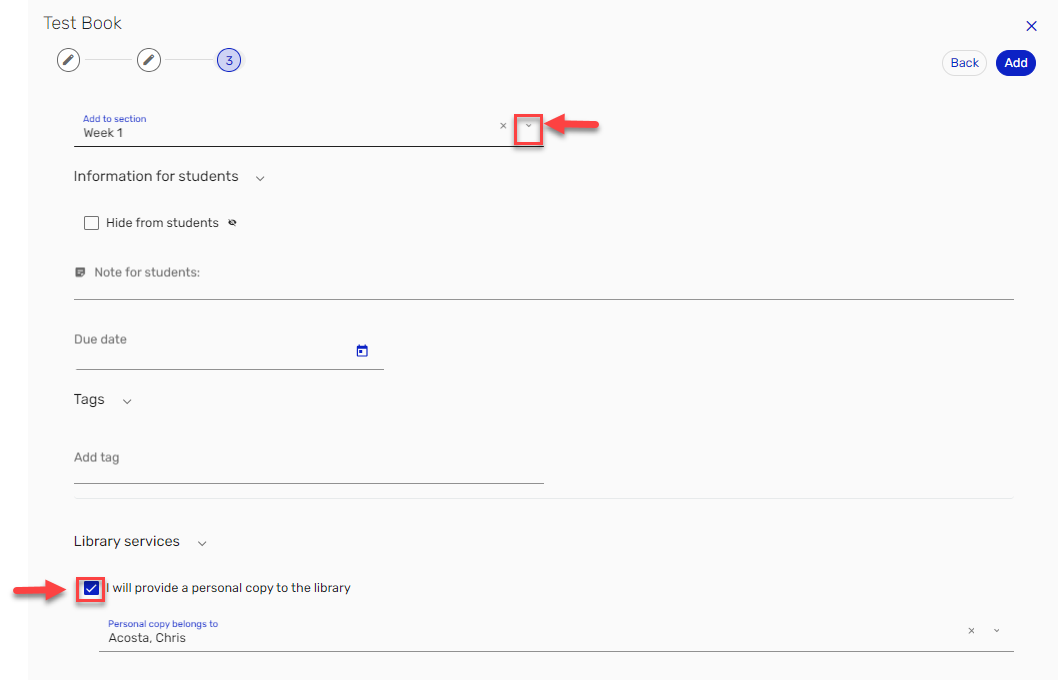
- Once finished, select Add at the top right corner.
- You’ll be greeted with a pop up window asking to indicate how you would like to process the citation. Options are Purchase electronic, Purchase print version. 1 copy, Purchase print version. 2copies, This is my personal copy I will bring to the library, and None of the above. Provide citation only.
- Please ignore all "purchase request" options.
- Note: If you are interested in having a purchase request submitted for a title that the library does not own, or has a limited inventory of,please reach out to your Liaison Librarian for assistance.
- For books, please select "This is my personal copy I will bring to the library."
- Please ignore all "purchase request" options.
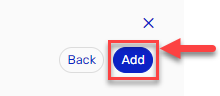
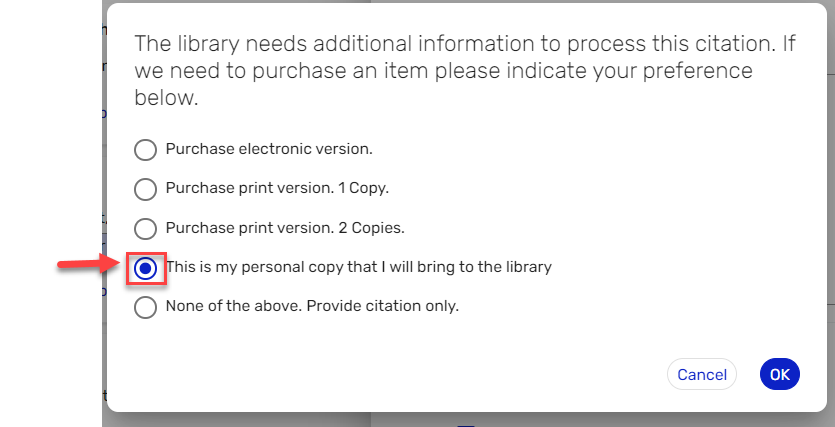
- Click Ok when done.
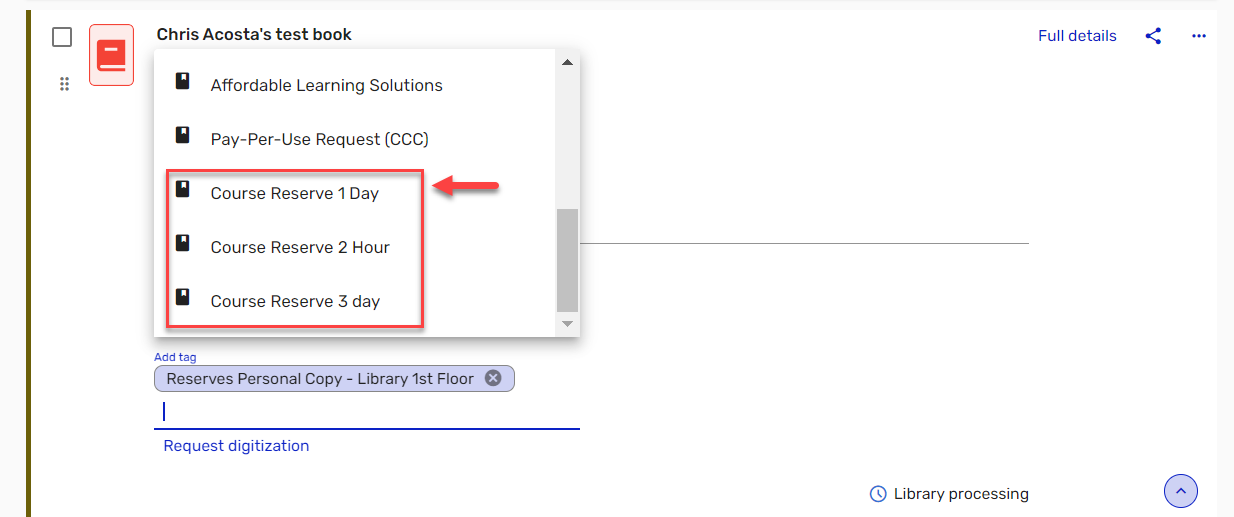
Note: Additionally for books, please indicate a loan period by selecting the desired tag within the citation.
Organize and Manage Citations (New UI)
- You can reorder items in the list by dragging and dropping them into different sections or positions.
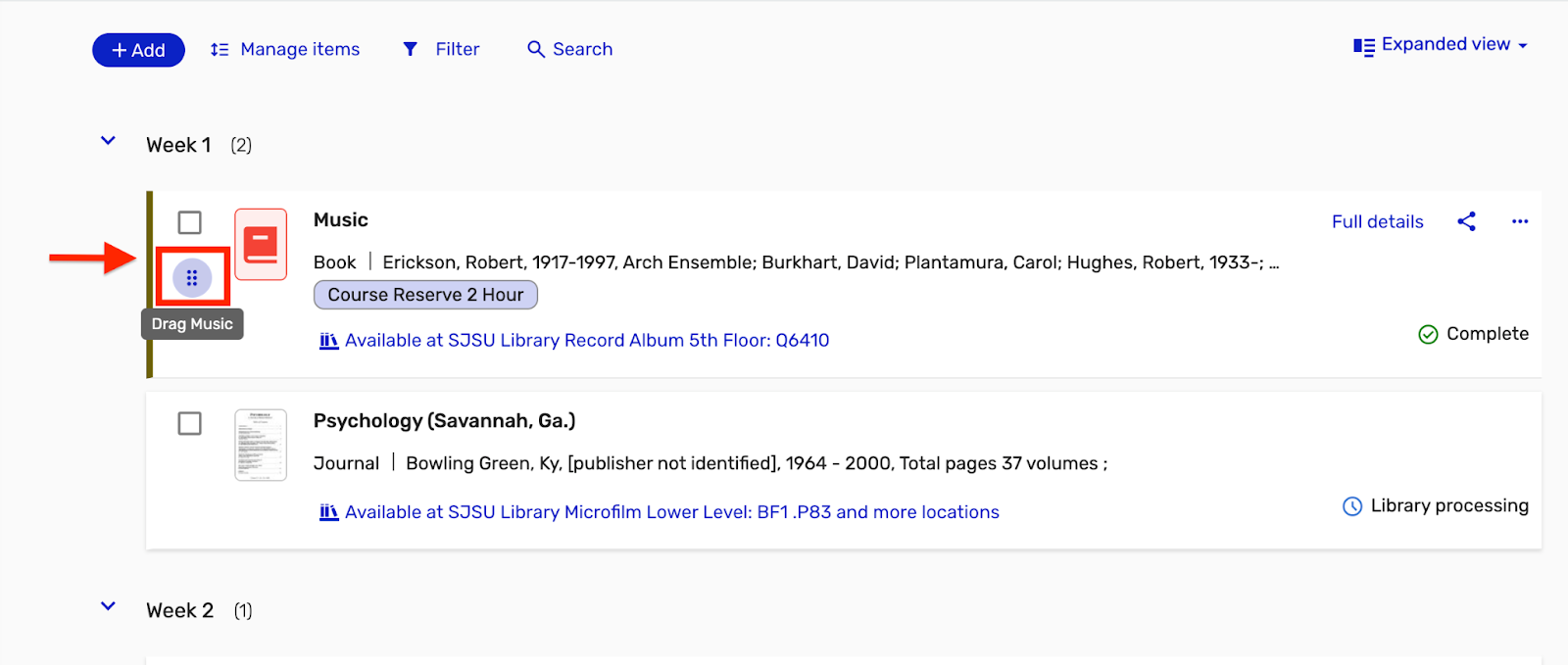
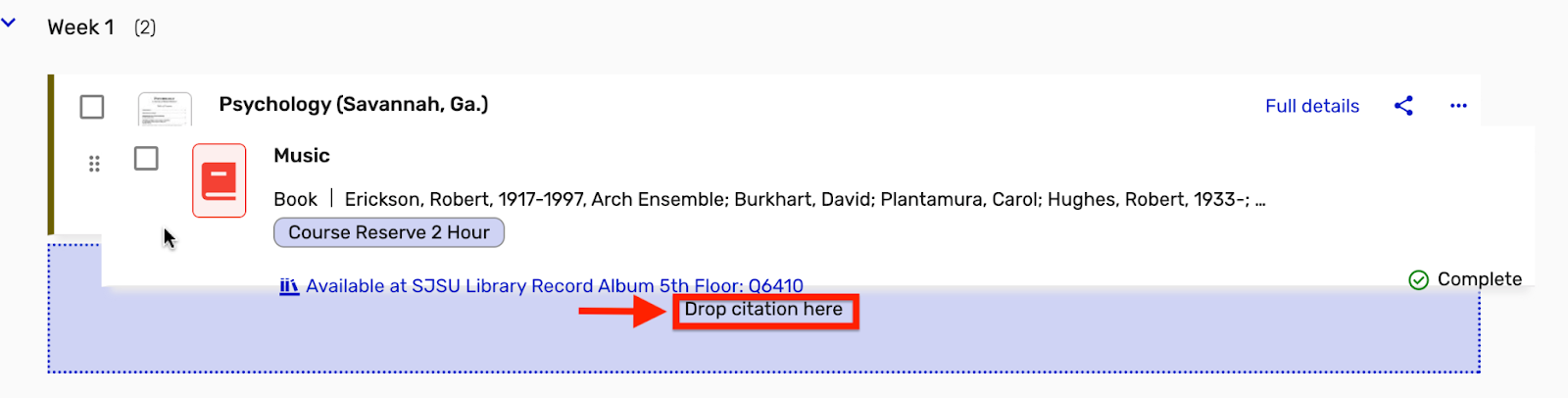
- Additionally, each citation allows for actions like Edit, Delete, or Tag, giving you the freedom to update your resources as needed.
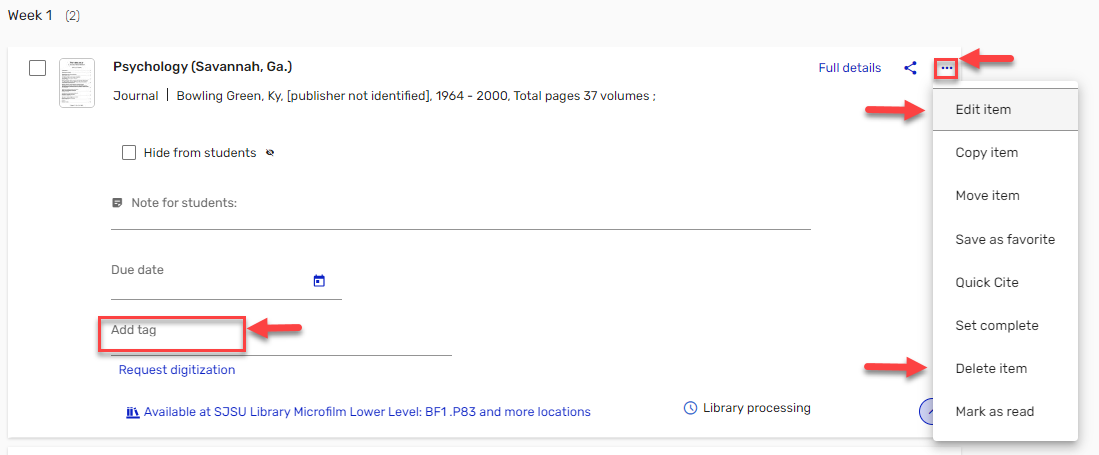
- Asan example, you can edit a citation to indicate that you would like your students to read a specific chapter of the resource.
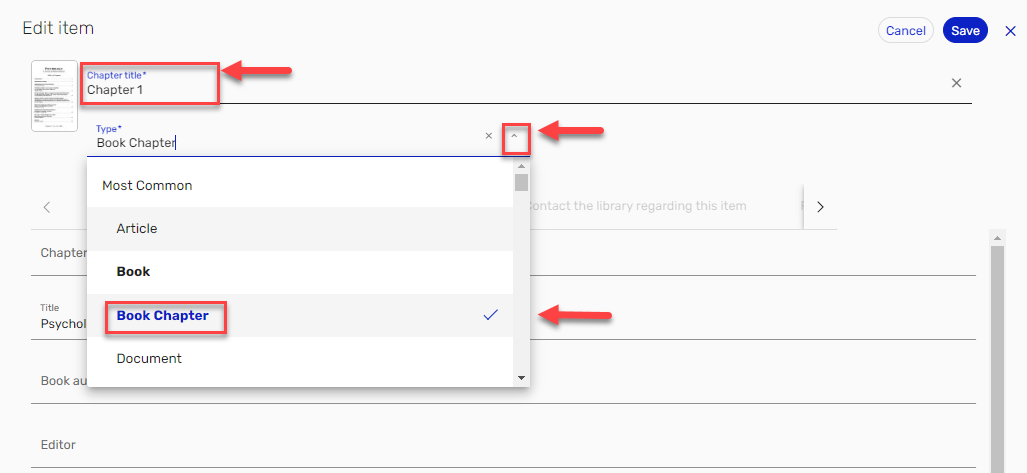
- When complete, select Save at the upper right corner.